Neural Networks: Difference between revisions
(Migrate protected Model Theory content) |
imported>Scott.Munro m (Document current Met Dynamics Models behavior (W170)) |
||
| Line 16: | Line 16: | ||
<syntaxhighlight lang="vb">=mdNeuralNet_Train(Parameters as Range, TrainingData as Range, Optional TestData as Range = Nothing)</syntaxhighlight> | <syntaxhighlight lang="vb">=mdNeuralNet_Train(Parameters as Range, TrainingData as Range, Optional TestData as Range = Nothing)</syntaxhighlight> | ||
The training result starts with nine diagnostic rows. The remaining rows contain the serialised network definition, including its scaling data. Supply only those remaining rows as <math>NetworkDefinition</math> to the processing function. | |||
{{Excel (Text, Help, No Arguments)}} | {{Excel (Text, Help, No Arguments)}} | ||
Latest revision as of 03:52, 23 October 2026
Description
This article describes methods for training and deploying neural network models.
Model theory
 This content is available to registered users. Please log in to view. |
Excel
 This section is currently under construction. Please check back later for updates and revisions. |
The Neural Network training method may be invoked from the Excel formula bar with the following function calls:
=mdNeuralNet_Train(Parameters as Range, TrainingData as Range, Optional TestData as Range = Nothing)
The training result starts with nine diagnostic rows. The remaining rows contain the serialised network definition, including its scaling data. Supply only those remaining rows as [math]\displaystyle{ NetworkDefinition }[/math] to the processing function.
Invoking the function with no arguments will print Help text associated with the model, including a link to this page.
An example image below shows the selection of the input parameters and model results in the Excel interface:
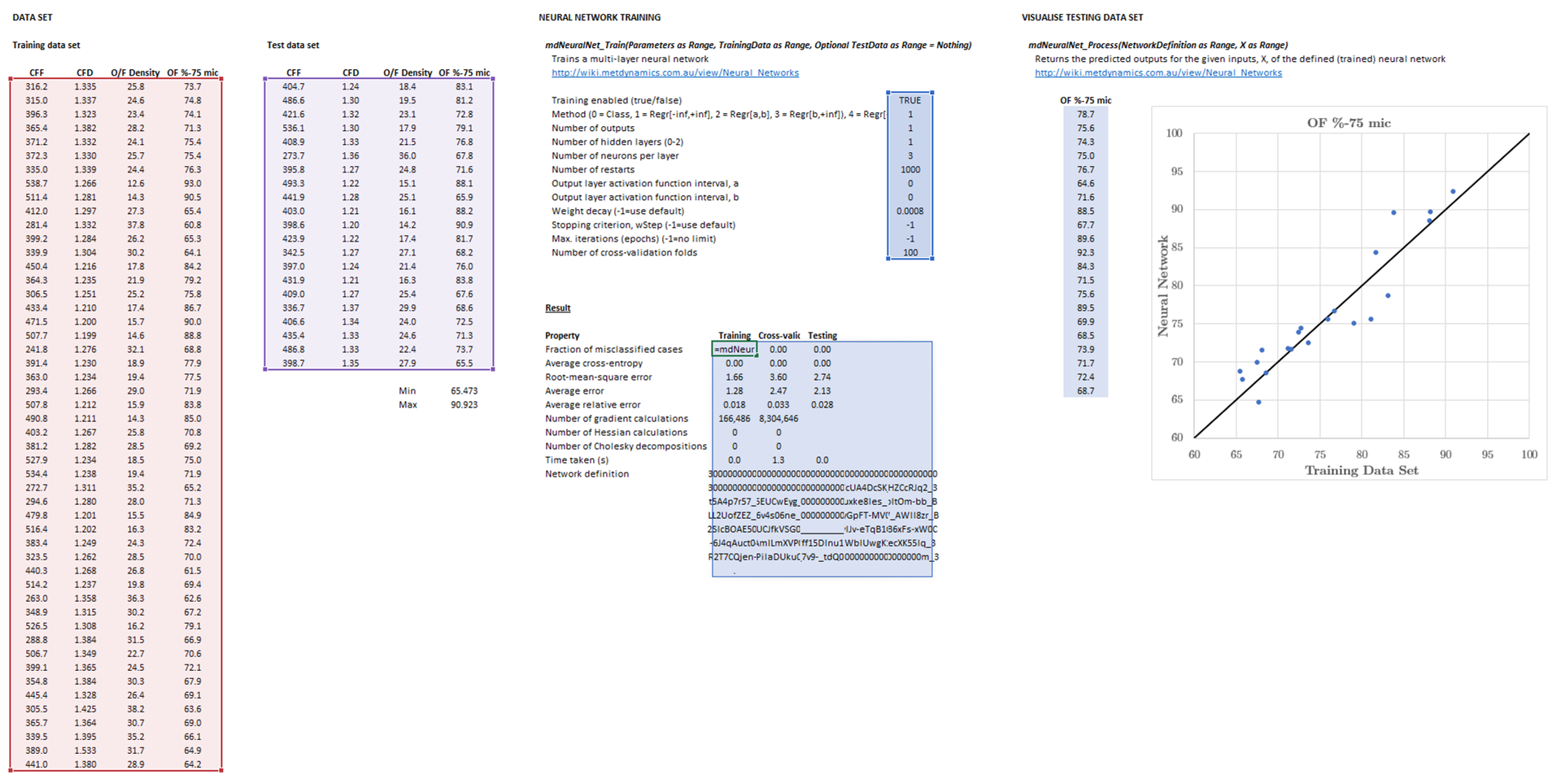 Figure 1. Example showing the selection of the Parameters (blue frame), TrainingData (red frame), TestData (purple frame), and Results (light blue frame) arrays in Excel.

The Neural Network processing method may be invoked from the Excel formula bar with the following function calls:
=mdNeuralNet_Process(NetworkDefinition as Range, X as Range)
Invoking the function with no arguments will print Help text associated with the model, including a link to this page.
An example image below shows the selection of the input parameters and model results in the Excel interface:
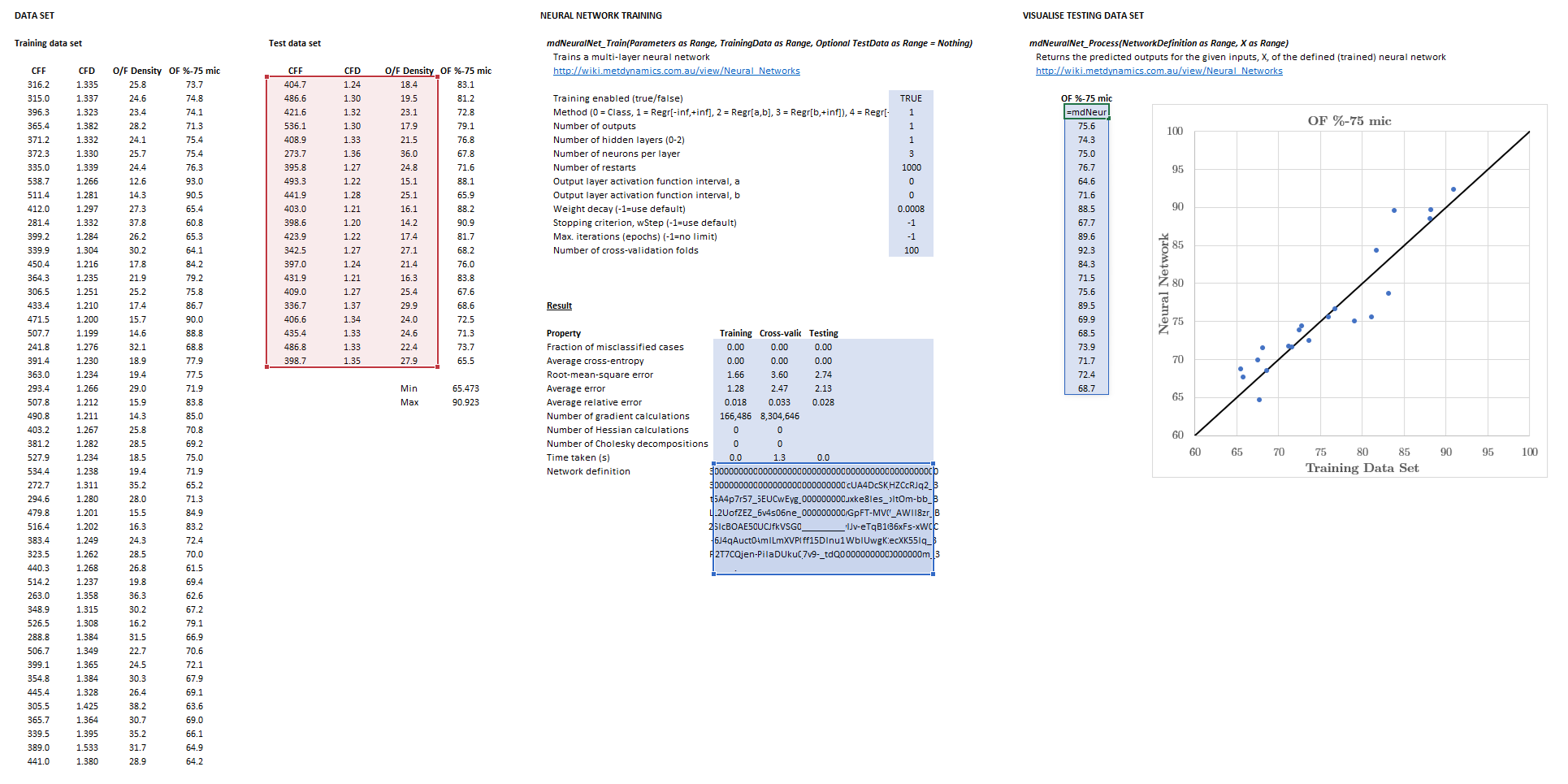 Figure 2. Example showing the selection of the NetworkDefinition (blue frame), X (red frame), and Results (light blue frame) arrays in Excel.

SysCAD
| This section is currently under construction. Please check back later for updates and revisions.
|