Neural Networks: Difference between revisions
md>Scott.Munro (Created page with "== Description == This article describes methods for training and deploying neural network models. == Model theory == {{Under construction|section}} == Excel == {{Under c...") |
imported>Scott.Munro m (Text replacement - "== References ==" to "{{ReferenceFooter}}") |
||
| (4 intermediate revisions by 3 users not shown) | |||
| Line 5: | Line 5: | ||
== Model theory == | == Model theory == | ||
{{Restricted content}} | |||
<hide> | |||
{{Under construction|section}} | {{Under construction|section}} | ||
</hide> | |||
== Excel == | == Excel == | ||
| Line 11: | Line 15: | ||
{{Under construction|section}} | {{Under construction|section}} | ||
The Neural Network | The '''Neural Network training''' method may be invoked from the Excel formula bar with the following function calls: | ||
<syntaxhighlight lang="vb">=mdNeuralNet_Train(Parameters as Range, TrainingData as Range, Optional TestData as Range = Nothing)</syntaxhighlight> | <syntaxhighlight lang="vb">=mdNeuralNet_Train(Parameters as Range, TrainingData as Range, Optional TestData as Range = Nothing)</syntaxhighlight> | ||
{{Excel (Text, Help, No Arguments)}} | |||
An example image below shows the selection of the input parameters and model results in the Excel interface: | |||
:{| | |||
|- style="vertical-align:top;" | |||
| [[File:NeuralNetworks1.png|frame|Figure 1. Example showing the selection of the '''Parameters''' (blue frame), '''TrainingData''' (red frame), '''TestData''' (purple frame), and '''Results''' (light blue frame) arrays in Excel.]] | |||
|} | |||
The '''Neural Network processing''' method may be invoked from the Excel formula bar with the following function calls: | |||
<syntaxhighlight lang="vb">=mdNeuralNet_Process(NetworkDefinition as Range, X as Range)</syntaxhighlight> | <syntaxhighlight lang="vb">=mdNeuralNet_Process(NetworkDefinition as Range, X as Range)</syntaxhighlight> | ||
{{Excel (Text, Help, No Arguments)}} | {{Excel (Text, Help, No Arguments)}} | ||
An example image below shows the selection of the input parameters and model results in the Excel interface: | |||
:{| | |||
|- style="vertical-align:top;" | |||
| [[File:NeuralNetworks2.png|frame|Figure 2. Example showing the selection of the '''NetworkDefinition''' (blue frame), '''X''' (red frame), and '''Results''' (light blue frame) arrays in Excel.]] | |||
|} | |||
== SysCAD == | == SysCAD == | ||
| Line 22: | Line 45: | ||
{{Under construction|section}} | {{Under construction|section}} | ||
{{ReferenceFooter}} | |||
[[Category:Excel]] | [[Category:Excel]] | ||
[[Category:SysCAD]] | [[Category:SysCAD]] | ||
Latest revision as of 13:48, 22 July 2026
Description
This article describes methods for training and deploying neural network models.
Model theory
 This content is available to registered users. Please log in to view. This content is available to registered users. Please log in to view.
|
Excel
 This section is currently under construction. Please check back later for updates and revisions. This section is currently under construction. Please check back later for updates and revisions.
|
The Neural Network training method may be invoked from the Excel formula bar with the following function calls:
=mdNeuralNet_Train(Parameters as Range, TrainingData as Range, Optional TestData as Range = Nothing)
Invoking the function with no arguments will print Help text associated with the model, including a link to this page.
An example image below shows the selection of the input parameters and model results in the Excel interface:
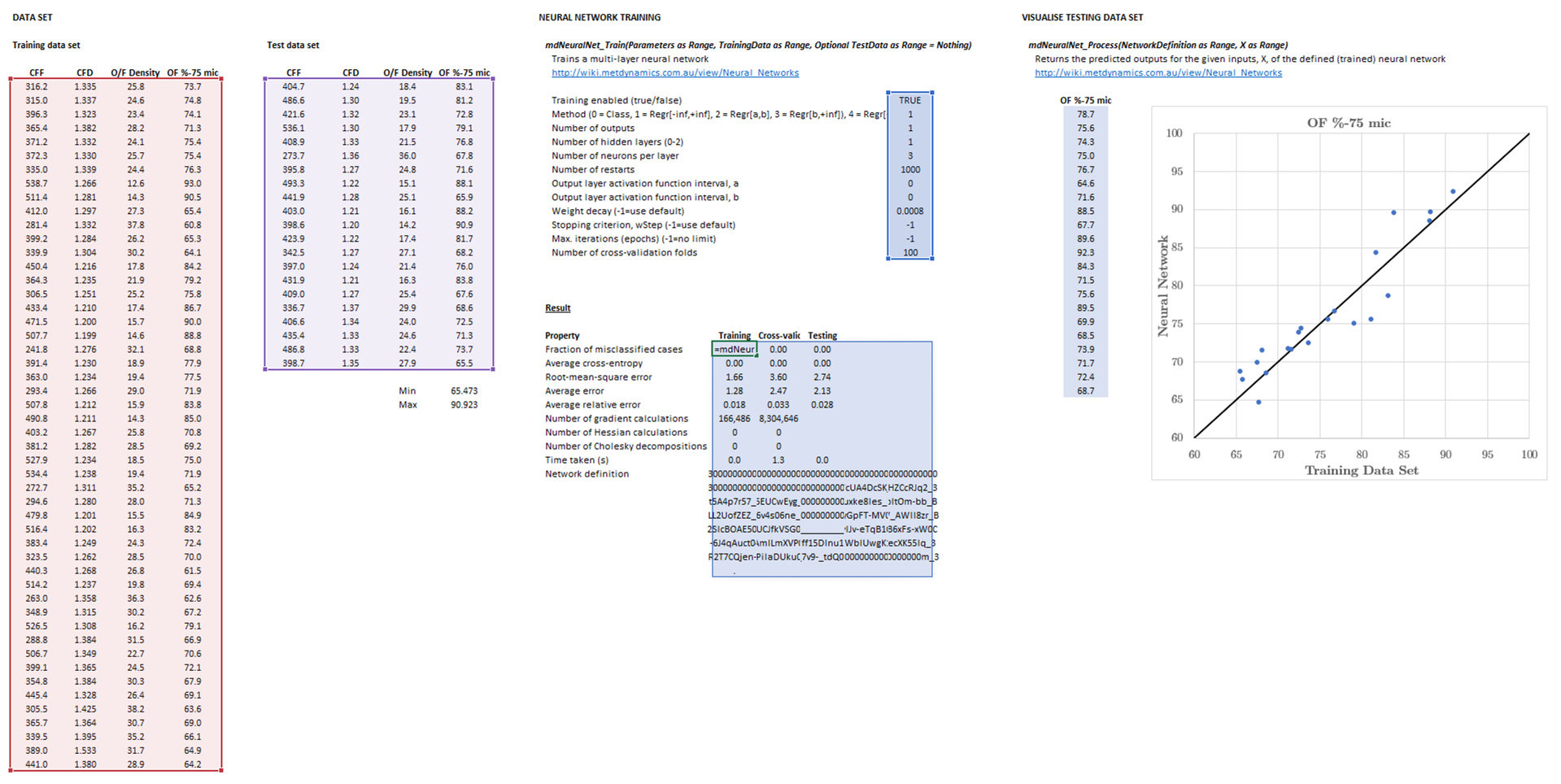 Figure 1. Example showing the selection of the Parameters (blue frame), TrainingData (red frame), TestData (purple frame), and Results (light blue frame) arrays in Excel.

The Neural Network processing method may be invoked from the Excel formula bar with the following function calls:
=mdNeuralNet_Process(NetworkDefinition as Range, X as Range)
Invoking the function with no arguments will print Help text associated with the model, including a link to this page.
An example image below shows the selection of the input parameters and model results in the Excel interface:
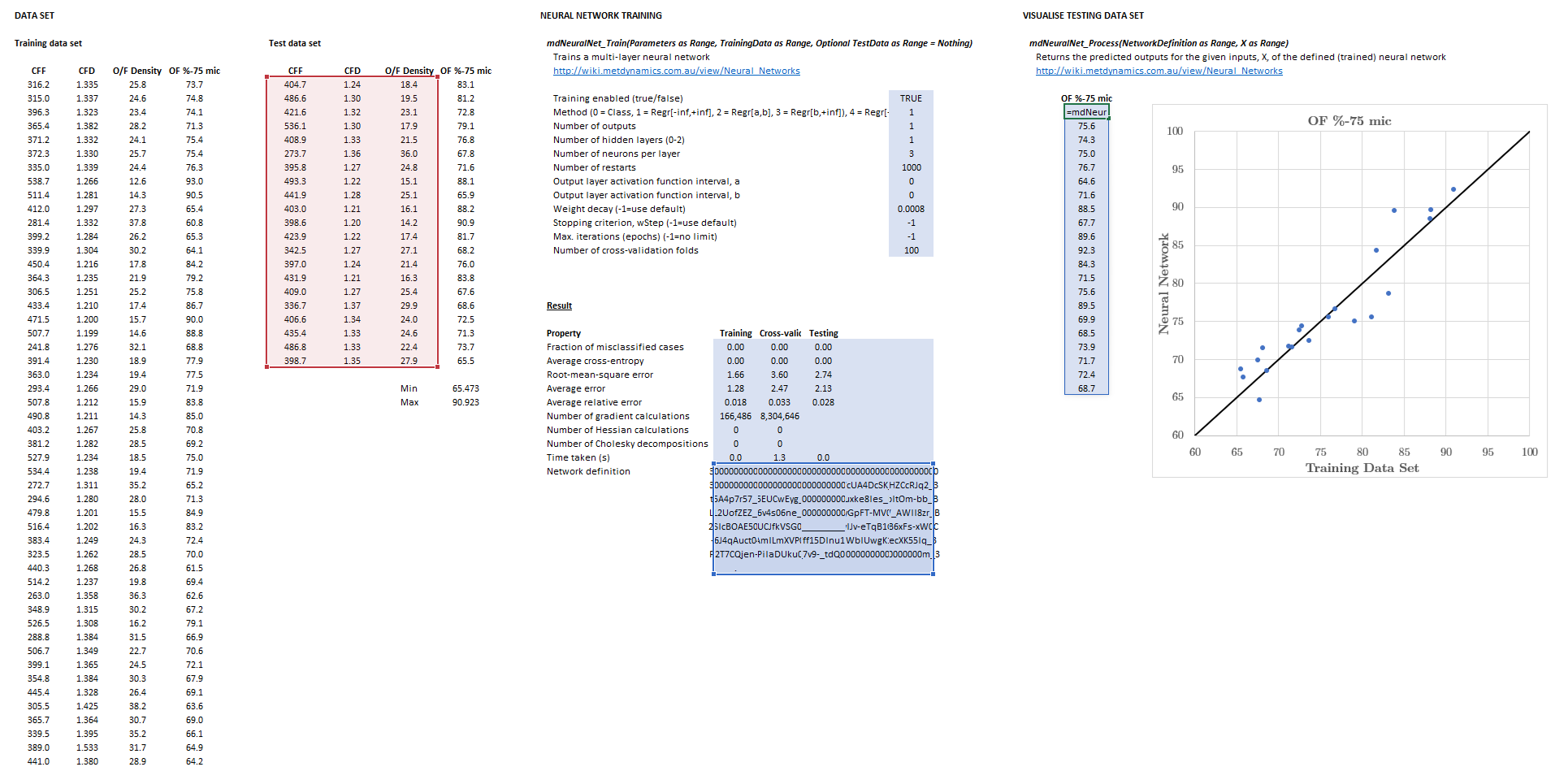 Figure 2. Example showing the selection of the NetworkDefinition (blue frame), X (red frame), and Results (light blue frame) arrays in Excel.

SysCAD
| This section is currently under construction. Please check back later for updates and revisions.
|